To play your Xbox games on your smartphone via cloud gaming, here is a clear guide:
✅ Technical prerequisites
- Android system : Version 12.0 or later
- Bluetooth : 4.0 minimum (if using a wireless controller)
- Internet connection : Minimum 7 Mbps (5 GHz Wi-Fi recommended for stability)
📶 Recommended connection
Wi-Fi (5 GHz preferred)
- ✔️ More stable inside
- ✔️ Fewer data restrictions
- ❌ May be affected by interference or signal range
Cellular (4G/5G)
- ✔️ Play anywhere on the go
- ✔️ 5G can outperform some Wi-Fi connections
- ❌ Risk of cuts during turn changes
- ❌ High data consumption
🎮 Joysticks & controls
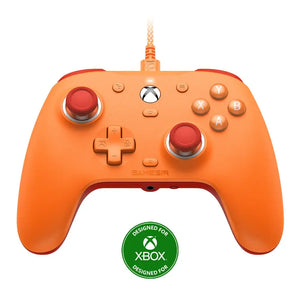
- ✅ Xbox Wireless Controller (via Bluetooth or USB) highly recommended
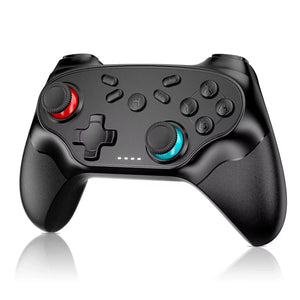
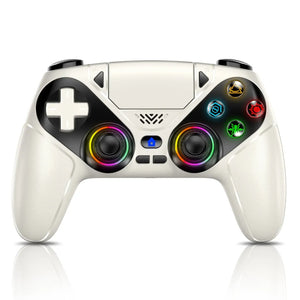
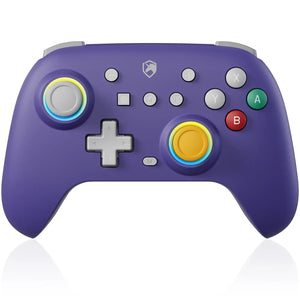
- ✅ Some third-party Bluetooth controllers are also compatible
- ❗ One account/controller only can be used at the same time
- ⚠️ Touch controls only available for certain games
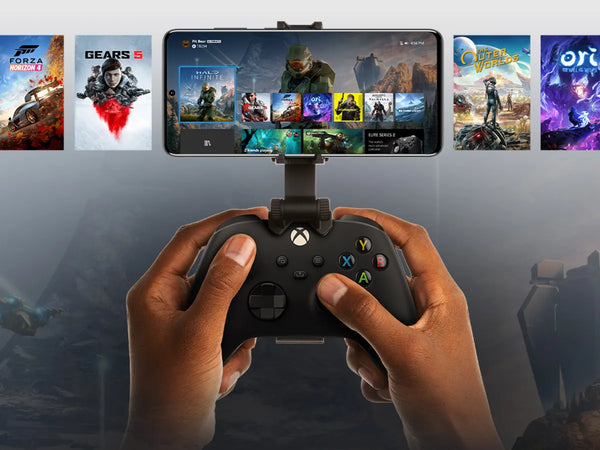
🚀 Start an Xbox game session on your smartphone
- Open your browser compatible (Edge or Chrome recommended)
- Access to https://xbox.com/play
- Sign in with your Xbox account
- Launch the game from the cloud library
- Press the Xbox button on your controller (or touch the screen) to display the menu
- Start a game to play with friends (optional)
🎧 Voice Chat & Permissions
- Activate the microphone and speaker permissions in the browser if you want to talk with your friends
- Check that you are not muted.
🎮 Cloud Gaming vs. Remote Play: What's the Difference for Playing Your Xbox Games on Other Devices?

Looking to enjoy your favorite Xbox games without being glued to your console? Good news: you have two options for playing on PC, mobile, or tablet. But be careful, the cloud gaming and the remote reading are two very different technologies. In this article, we explain everything you need to know to choose the right one for your needs. ⚡
☁️ Cloud Gaming: Play without a console, wherever you want
THE cloud gaming allows you to instantly stream Xbox games from remote servers, via a simple internet connection. No downloads, no installation, no console required. You play directly on your smartphone, tablet, PC or even on certain smart TVs.
To use this technology, you just need to have a Xbox Game Pass Ultimate subscription, or a compatible free game. Once signed in, you can access your game library anytime, anywhere. Imagine playing Forza Horizon on the train or at Halo Infinite from your couch without turning on your console. Convenient, right? 😎
One small drawback: cloud gaming is not yet available in all regions.So it's best to check availability in your country before you jump in.
📡 Remote Play: Your console as a gaming center
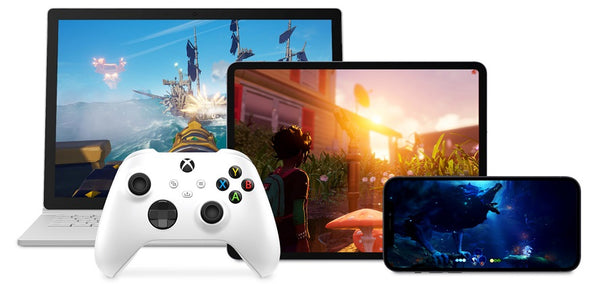
There remote reading, meanwhile, allows you to stream your games directly from your own Xbox console to another device. This means your console remains the host of the game, but you can play it from your phone, tablet, or PC, even remotely.
You don't need a Game Pass subscription to use this feature. Just make sure your console is turned on and connected to the internet. Then, go to xbox.com/remoteplay or use the Xbox app on Windows. As long as the game is installed on your console, you can play it wherever you are 🌍
Traveling but left your Xbox at home? No worries, Remote Play lets you access your installed titles, as long as you have a stable connection.
🆚 Which option to choose?
In summary, the cloud gaming is ideal if you don't want to rely on a physical console. It's fast, smooth, and accessible with a subscription. remote reading, it is perfect if you want to enjoy your existing console at no extra cost, even remotely.
So, ready to expand your gaming universe? 🎮 Whether you're streaming from the cloud or connecting to your Xbox remotely, Microsoft gives you the freedom to play wherever you want, whenever you want.